Most Canva YouTube Shorts templates look the same, generic text overlays, stock transitions, and layouts that scream "I made this in five minutes." That's a problem when you're trying to stand out in a feed where viewers decide to swipe in under two seconds. The good news: Canva's template library is actually a solid starting point, but only if you know how to customize it for performance, not just aesthetics.
This guide walks you through finding the right templates, editing them to match your brand, and optimizing every element, from hooks to pacing, so your Shorts actually get watched. We'll cover template selection, customization techniques, and formatting details that most creators overlook. No fluff, just the practical steps.
At SocialRevver, we build short-form content systems backed by data from over 750,000 videos. We know what makes people stop scrolling. While Canva templates won't replace a full production pipeline, they're a strong DIY option, especially when you apply the same principles of psychology and structure that drive high-performing content. Let's get into it.
What makes a good Shorts template
Not every template works for short-form video. A good Shorts template solves a specific performance problem: it structures your content so viewers stay past the first two seconds and keeps them watching until the end. Most templates fail because they prioritize looks over function. Before you open Canva YouTube Shorts templates and start editing, you need to understand what separates a high-retention layout from one that gets skipped immediately.
Hook placement and the first frame
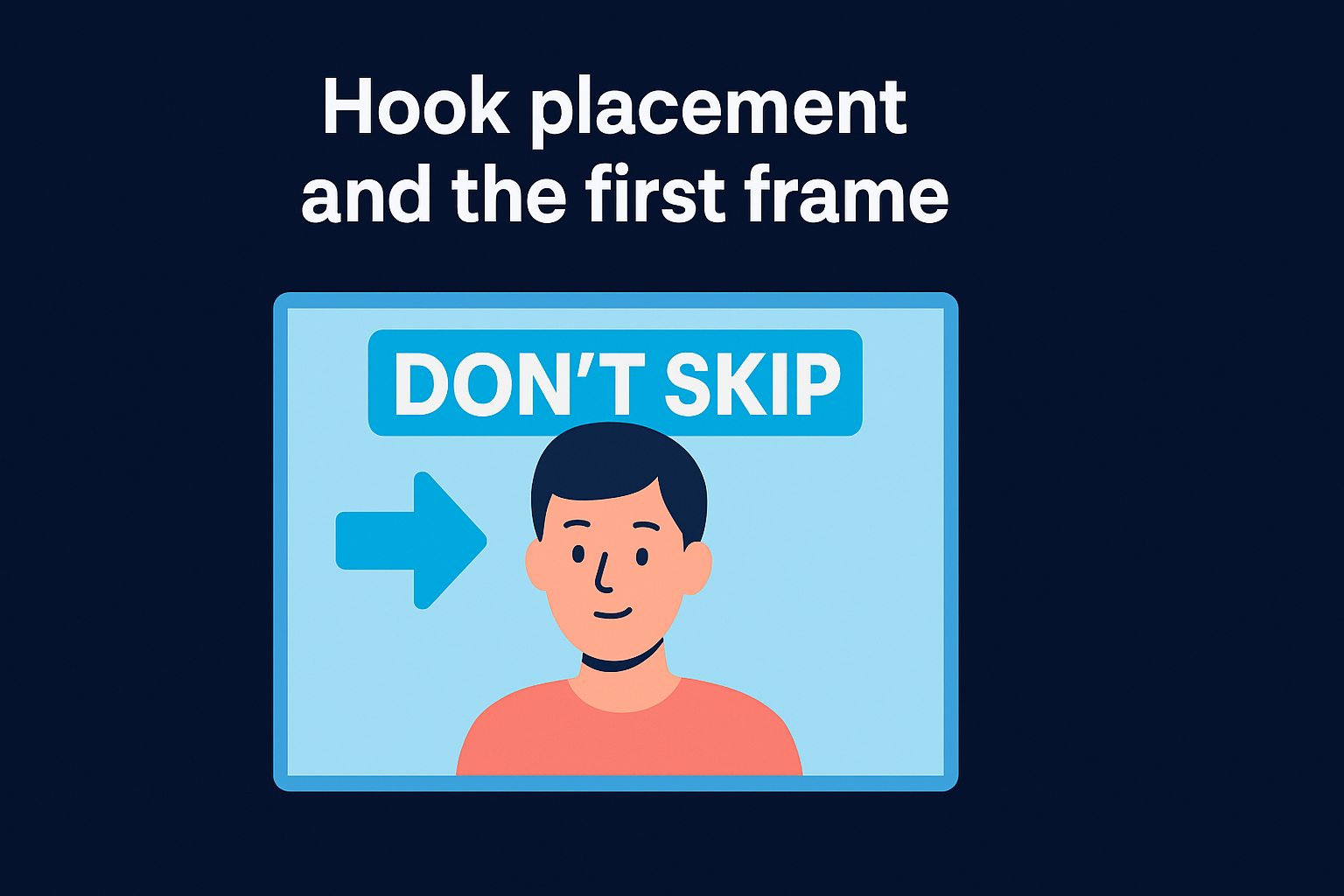
The first frame is your entire pitch. Viewers on YouTube Shorts decide to swipe or stay based on what they see and read in the opening moment, not the middle or the end. A strong template positions your hook text in the top third of the screen, where eyes land first, and uses high-contrast colors so the message is readable in any lighting condition.
If your opening frame doesn't make a specific, compelling promise, no amount of editing will recover your watch time.
Here's what the first frame of a high-performing Shorts template should include:
- A text hook in the top 30% of the frame (large, bold, readable font)
- A visual anchor in the center that supports the hook, such as a face, product, or graphic
- No more than 6 words in the opening text overlay
- A background that contrasts sharply with your text color
Vertical layout and text hierarchy
YouTube Shorts plays at a 9:16 aspect ratio, which means your template must be built for vertical viewing from the start. Horizontal layouts cropped to vertical always leave dead space, and dead space kills attention. A proper template uses the full 1080x1920 canvas and places key information in the center 80% of the frame, keeping the top and bottom edges clear for YouTube's UI overlays like the title, like button, and subscribe prompt.
Text hierarchy matters just as much as placement. Your most important text should be the largest element on screen, with secondary text noticeably smaller. Using three distinct font sizes for three levels of information gives viewers a visual map of what to focus on, which reduces cognitive load and keeps them engaged longer.
Pacing, timing, and motion
A template that looks great as a static image can still fail in motion. Timing your text animations to appear with natural speech rhythms keeps viewers oriented. If your text pops up too early or too late relative to what you're saying, it creates unnecessary friction, and friction causes drop-off.
Short-form content performs best when on-screen elements change every two to three seconds. That doesn't mean chaos; it means intentional pacing. A well-built template accounts for this by pre-timing text reveal animations and transitions so you're not building timing from scratch on every video. Look for templates that show clear keyframe markers or timed layers, because those are the ones built for performance, not just presentation.
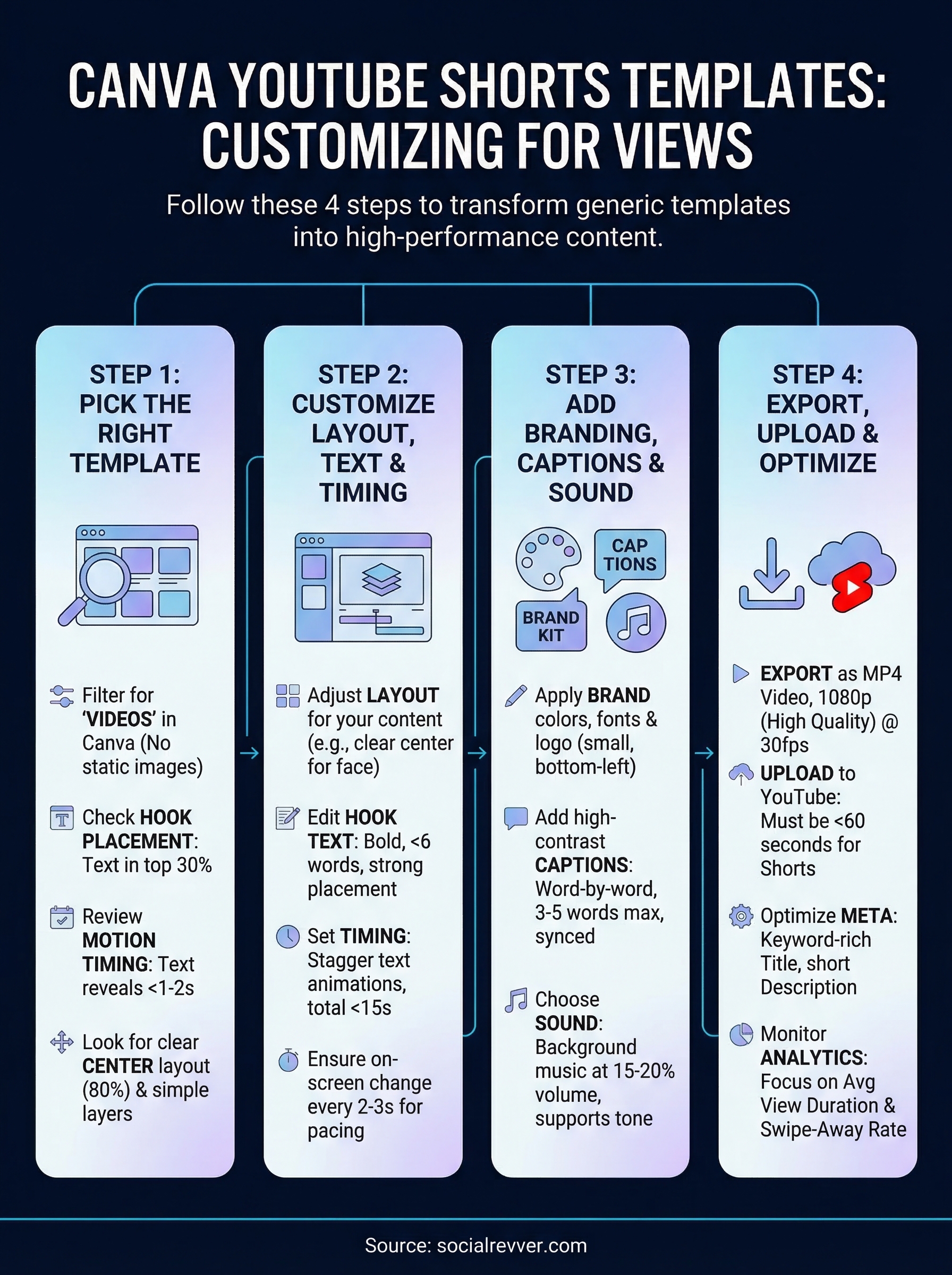
Step 1. Pick the right Canva Shorts template
Opening Canva and searching "YouTube Shorts" will return hundreds of results. Most of them are not worth your time. The goal of this step is to filter fast and choose a template that gives you a real structural advantage, not just a colorful layout that looks polished in the thumbnail preview.
Where to find Shorts-specific templates in Canva
Log into Canva and use the search bar to type "YouTube Shorts" directly. Do not start with a blank 1080x1920 canvas and try to adapt a general social media template. Shorts-specific templates are pre-built for the aspect ratio and vertical viewing behavior, which saves you significant setup time. From the results, filter by "Videos" using the content type filter on the left panel to remove static image templates from your results.
Choosing a video template over a static image template from the start prevents common formatting issues that break the final export.
What to look for before you click "use this template"
Once you have a filtered list of canva youtube shorts templates, preview each one in motion before selecting it. Canva lets you hover over a template to see a short animation preview. You want a template where text elements appear early, the layout keeps the center of the frame clear, and the visual style fits your brand without heavy reworking.
Use this checklist to evaluate each template quickly:
| Criteria | What to look for |
|---|---|
| Hook text placement | Top third of the frame, large and bold |
| Motion timing | Text reveals within the first 1-2 seconds |
| Layout structure | Center 80% active, edges clear |
| Color contrast | Text readable on both light and dark backgrounds |
| Layer count | Fewer than 10 layers for easier customization |
Avoid templates that front-load decorative animations before any text appears. Decorative openers cost you the first two seconds, which is exactly the window where most viewers decide to stay or leave.
Step 2. Customize layout, text, and timing
Once you've selected a template, open it in the Canva editor and resist the urge to change colors first. Layout, text, and timing are the three elements that directly affect how long someone watches your video. Start with structure, then move to style. This order saves you from having to redo visual decisions after you've already adjusted the timing.
Adjust the layout for your content type
Every piece of content has a different structure. A talking-head video needs the center of the frame kept clear for your face, while a text-only explainer can fill more of the vertical space with layered elements. In Canva, click on each layer in your template and move elements to match your specific content format. Lock the layers you don't plan to change by right-clicking and selecting "Lock," so you don't accidentally shift them while editing other parts of the frame.
Keeping your center frame clear of text during your opening shot gives your face or main visual room to anchor the viewer's attention before you layer in additional information.
Use the Canva alignment tool (the ruler icon in the top toolbar) to snap elements into precise positions. Eyeballing placement leads to layouts that look slightly off on mobile screens, which is where most YouTube Shorts views happen.
Edit text for hook performance
Replace every placeholder text block with your actual script copy. Your hook line should sit in the top third of the frame, use no more than six words, and be set in a font weight of Bold or ExtraBold. Thin or light font weights break readability at small screen sizes. For secondary text blocks, reduce the font size by at least 30% compared to your hook to create clear visual hierarchy.
Set timing and animation
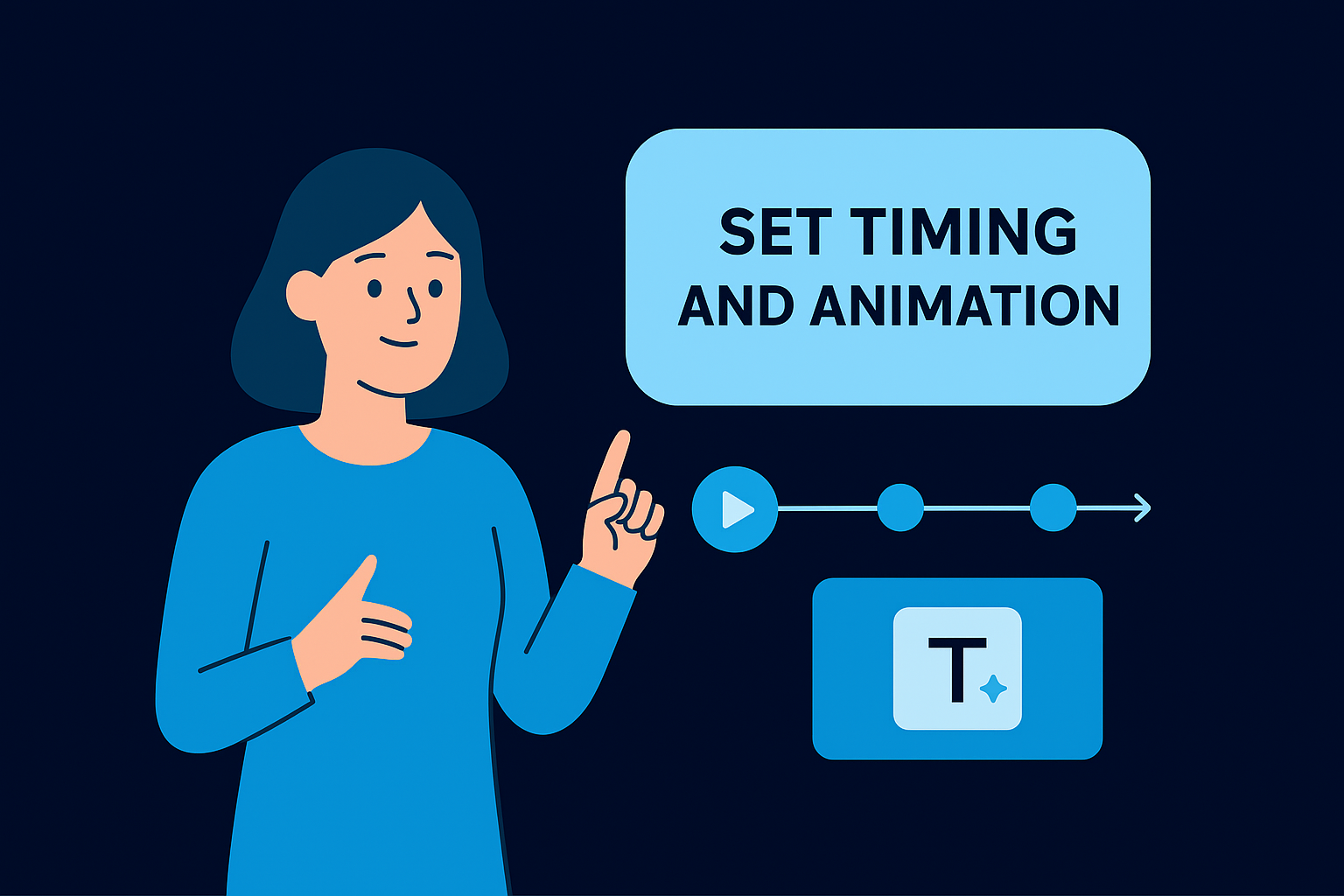
Click on each animated text element and open the "Animate" panel to review when it appears on screen. Adjust the entry timing so your hook text appears within the first 0.5 seconds of the video. For canva youtube shorts templates with multiple text layers, stagger each text block by one to two seconds so the screen doesn't flood with information all at once. Keep total animation duration under 15 seconds to match standard Shorts viewing behavior.
Step 3. Add branding, captions, and sound
Layout and timing get people to stay, but branding, captions, and sound determine whether viewers connect the content to you. This step is where your canva youtube shorts templates stop looking like every other creator's output and start building real recognition. Work through each element in sequence so nothing gets skipped under deadline pressure.
Apply your brand consistently
Open the Brand Kit panel in Canva (available on Pro plans) and apply your brand colors, fonts, and logo to the template in one pass. If you're on the free plan, manually replace each color swatch by clicking the element, selecting the color picker, and entering your exact hex code. Do the same for every font: your primary brand font for hooks, your secondary font for supporting text. Place your logo in the bottom left corner at roughly 8% of the frame width, small enough to avoid blocking content but visible enough to register on repeat views.
Consistent visual branding across every Short trains your audience to recognize your content before they even read the title.
Add captions that hold attention
Captions are not optional on short-form video. Most Shorts views happen without sound, so captions carry the full weight of your message for a significant portion of your audience. In Canva, use the text tool to add word-by-word caption blocks synced to your script timing. Set caption text in a high-contrast color with a semi-transparent background box behind each word group so it remains readable across any visual background. Keep each caption block to three to five words maximum to match natural reading speed.
Here is a caption formatting template you can apply directly in Canva:
- Font: Bold or ExtraBold weight, 52-64pt size
- Color: White text on a black or dark background pill shape
- Position: Center of frame, lower third
- Timing: Each block visible for 0.8 to 1.5 seconds
Choose sound that serves the content
Background music and sound effects change how your video feels without a single word. In Canva, open the Audio panel and filter by mood to find tracks that match your content tone. Set background music volume to 15-20% so it supports the pacing without competing with voiceover or caption reading. Avoid trending audio inside Canva's library for professional brand content since licensing terms vary; stick to tracks marked "free to use commercially" in the audio filter settings.
Step 4. Export, upload, and optimize for views
You've done the hard work inside Canva. How you export and upload your Short determines whether that work actually reaches an audience. A wrong export setting or a thin video description can suppress your reach before a single viewer sees your content.
Export with the right settings
In Canva, click the Share button in the top right corner, then select "Download." Set the file type to MP4 Video and choose the highest available quality option, which Canva labels as "1080p." Do not use GIF or any compressed format. Before you download, verify the frame rate is set to 30fps in the download options panel, since lower frame rates create choppy playback on mobile, which is where most Shorts views occur.
Exporting at 1080p from your canva youtube shorts templates ensures YouTube does not re-compress your file into a blurry lower-resolution version during processing.
Upload and configure your Short correctly
Open YouTube Studio and click "Create" then "Upload videos." Drop your exported MP4 file directly into the upload window. YouTube automatically detects the 9:16 aspect ratio and classifies the video as a Short, but only if the video is 60 seconds or under. If your video exceeds that length, it will not appear in the Shorts feed regardless of aspect ratio. Once uploaded, set your visibility to Public and add a custom thumbnail sized at 1080x1920 pixels to improve click rate.
Use this upload checklist before hitting publish:
- Title: Under 60 characters, front-load the topic keyword
- Description: Two to three sentences with a clear next action for the viewer
- Category: Set to the most relevant content category for your niche
- Visibility: Public with no scheduled delay for maximum early momentum
Improve performance after publishing
Watch your Shorts analytics in YouTube Studio 24 to 48 hours after publishing. Focus on average view duration and swipe-away rate rather than total views. If viewers drop off in the first three seconds, your hook needs adjustment. If they leave at the midpoint, your pacing or content structure needs work. Use this data to refine your next template edit before you produce another batch.
Next steps
You now have a complete process for turning canva youtube shorts templates into content that earns views instead of getting skipped. You picked a performance-focused template, adjusted layout and timing, added captions and branding, and exported at the right settings for YouTube. Each step builds on the last, so skipping one creates a gap that reduces your results.
The next move is to apply this process to your first three Shorts and compare their average view duration against your previous content. That comparison will show you exactly which elements are working and where you need to adjust. Track the data after each upload and refine your template edits based on what the numbers tell you, not guesswork.
If you want a done-for-you system that builds and operates your entire short-form content pipeline using machine learning and production-level quality, apply to work with SocialRevver and get a free 40+ slide social media strategy built for your brand.