
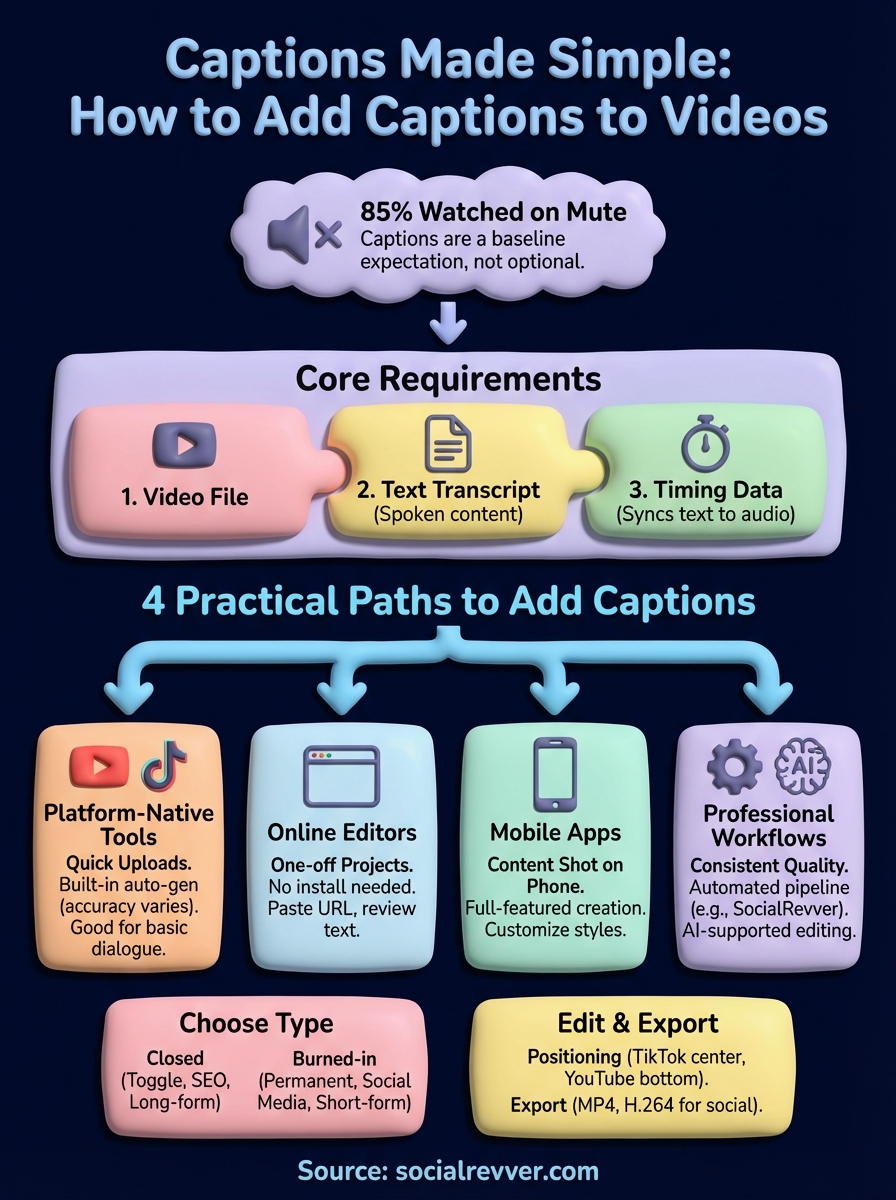
Videos without captions lose viewers. Research shows that up to 85% of social media videos are watched on mute, which means if you haven't figured out how to add captions to videos, you're essentially talking to an empty room. Whether you're posting to TikTok, Instagram Reels, or YouTube Shorts, captions aren't optional anymore, they're a baseline expectation for anyone serious about building an audience.
The good news? Adding captions doesn't require expensive software or hours of manual transcription. Free tools and automated solutions have made the process faster than ever, though quality varies widely depending on what you choose. Some methods take minutes; others deliver professional-grade results that actually help convert viewers into followers and customers.
This guide breaks down the most practical ways to caption your videos, from free mobile apps to platform-native features to fully automated workflows. At SocialRevver, captions are a core component of our AI-supported editing pipeline for short-form content, so we've tested dozens of captioning methods across thousands of videos. Here's what actually works, what wastes your time, and how to choose the right approach for your specific situation.
What captions are and what you need
Captions are text overlays that display spoken dialogue and sound descriptions directly on your video. Unlike traditional subtitles that primarily translate foreign languages, captions include speaker identification, sound effects, and background audio that make your content accessible to deaf and hard-of-hearing viewers. Most platforms now treat captions as a ranking signal because they improve watch time and engagement across all viewer types.
Core caption requirements
You need three basic elements to add captions successfully: your video file, a text transcript of the spoken content, and timing data that syncs each line to the correct moment. The transcript can come from manual typing, platform auto-generation, or third-party transcription services. Timing usually happens automatically through captioning tools, but you'll often need to adjust it manually for accuracy, especially with fast-paced content or multiple speakers.
Accurate timing matters more than perfect grammar. Viewers will tolerate minor typos, but they'll abandon your video if captions lag behind or appear too early.
Tools and file formats
Most captioning workflows use SRT (SubRip Text) files or VTT (Web Video Text Tracks) as the standard formats. SRT files contain plain text with timestamps and work across nearly every platform, while VTT files support additional styling options for web-based players. You don't need specialized software to create these, any text editor can generate an SRT file if you follow the format correctly, though dedicated tools make the process faster. When you're learning how to add captions to videos, understanding these file types helps you move captions between platforms without starting from scratch each time.
Free options include native platform tools like YouTube's auto-captions, mobile apps like CapCut and InShot, and web-based editors like Kapwing. Paid solutions like Descript and Rev offer higher accuracy and faster turnaround but aren't necessary for most content creators just starting out.
Step 1. Choose captions, subtitles, or burned-in text
You face three distinct options when learning how to add captions to videos, and each serves a different purpose. Closed captions can be toggled on and off by viewers, open captions (burned-in text) stay permanently embedded in the video file, and subtitles traditionally focus on translating dialogue rather than describing all audio elements. Most platforms default to closed captions because they offer flexibility, but burned-in captions perform better on social media where viewers scroll quickly and may not realize captions are available.
Closed captions (the default choice)
Closed captions exist as separate text files that load alongside your video, giving viewers control over whether they see them. Platforms like YouTube and Facebook store captions in their systems rather than embedding them in the video itself, which means you can edit or update them after publishing. This format works best for long-form content where accessibility requirements matter more than immediate engagement, though it requires viewers to manually enable captions in many cases.
Closed captions meet legal accessibility standards for most platforms, but they won't display automatically in social feeds.
Burned-in captions (permanent text)
Burned-in captions are permanently embedded into your video frames during the editing process. You can't turn them off, which makes them the standard for short-form content on TikTok, Instagram Reels, and YouTube Shorts. They guarantee every viewer sees your message regardless of platform settings, and testing shows they increase watch time by 12-15% compared to videos without visible text.
Step 2. Generate captions with your platform tools
Most major platforms include built-in captioning features that eliminate the need for third-party software when you're just learning how to add captions to videos. These native tools generate captions automatically using speech recognition technology, though accuracy varies significantly by platform and audio quality. Platform tools work best for straightforward dialogue without heavy background noise, multiple speakers, or technical terminology.
YouTube auto-captions
YouTube's automatic caption system activates by default when you upload a video and typically generates usable captions within 5-10 minutes for videos under an hour. You access them through YouTube Studio by selecting your video, clicking "Subtitles" in the left menu, and choosing the auto-generated track. The system handles clear speech reasonably well but struggles with accents, background music, and rapid dialogue. You edit directly in the interface by clicking any caption line, correcting the text, and adjusting timestamps if needed.
YouTube's auto-captions achieve 70-85% accuracy for standard American English but drop below 50% for technical content or non-native speakers.
TikTok and Instagram native tools
TikTok offers one-tap auto-captions through the editing screen by selecting "Captions" after you finish recording. The system generates captions instantly and lets you change font styles, colors, and positioning within the app itself. Instagram added similar functionality to Reels in 2023, though you access it through the sticker menu rather than a dedicated caption button. Both platforms limit customization compared to desktop editors but deliver fast results that sync automatically to your audio.
Step 3. Create captions with online editors and apps
Third-party tools give you more control over caption styling and accuracy than platform-native features, especially when you need to create captions before uploading. Online editors and mobile apps fill the gap between basic auto-generation and expensive professional services, offering free tiers that handle most short-form content without requiring software installation or technical expertise.
Browser-based caption editors
Web-based editors like Kapwing and Clideo let you upload your video directly in your browser and generate captions without creating an account in many cases. You paste your video URL or drag the file into the editor, click the auto-caption button, and review the generated text within 2-3 minutes. These tools typically allow basic styling options including font selection, text color, background boxes, and positioning before you download the final video with burned-in captions.
Browser editors work best when you need quick captions for a single video but don't want to install mobile apps or desktop software.
Mobile captioning apps
Apps like CapCut and InShot provide full-featured caption creation on your phone, making them practical when you're learning how to add captions to videos shot on mobile devices. You import your video from your camera roll, tap the caption or text tool, select auto-caption, and the app generates synchronized text within seconds. Both apps let you customize font styles, animations, and colors before exporting the finished video directly to your social platforms.
Step 4. Edit, style, and export for each channel
Raw auto-generated captions need manual review and platform-specific adjustments before you publish. Each social platform has different technical requirements for caption positioning, font size, and readability, which means the same caption file often needs separate versions for YouTube, TikTok, and Instagram. You review your captions for accuracy first, then adjust styling to match each platform's viewing context and audience expectations.
Platform-specific formatting requirements
You position captions differently depending on where viewers watch your content. YouTube videos need captions at the bottom to avoid covering interface elements, while TikTok and Instagram Reels perform better with center-positioned captions that capture attention in fast-scrolling feeds. Font sizes should range from 18-24pt for mobile platforms and 14-18pt for desktop viewing, with high-contrast colors like white text on black backgrounds delivering the best readability.
Caption positioning affects watch-through rates by up to 8% when optimized for each platform's interface.
Export settings for maximum quality
You export with different specifications based on your distribution method. When adding captions to videos for social platforms, choose MP4 format with H.264 codec at 1080p resolution for universal compatibility. Burned-in captions require no additional files, but closed captions need separate SRT or VTT exports uploaded alongside your video in platform dashboards.
Quick recap
Learning how to add captions to videos doesn't require expensive software or hours of manual work. You've seen four practical paths: platform-native tools for quick uploads, browser editors for one-off projects, mobile apps for content shot on your phone, and professional workflows for consistent quality. Each method fits different situations, but they all follow the same core process of generating text, syncing timestamps, and adjusting for platform requirements.
Caption quality directly impacts your watch time and conversion rates, which is why we build automated captioning into every video we produce at SocialRevver. Our AI-supported editing pipeline generates, styles, and optimizes captions specifically for each distribution channel without requiring manual intervention. If you're ready to move beyond one-off caption fixes and build a predictable content system that drives measurable business results, apply to work with our team and get a free 40+ slide social media strategy built around your specific goals.