
YouTube Shorts now pulls in over 70 billion daily views, making it one of the fastest-growing content formats for building authority and generating leads. But before you can tap into that attention, you need to know how to upload YouTube Shorts correctly, because one wrong setting can tank your reach or prevent your video from being recognized as a Short altogether. Whether you're a founder building thought leadership or a creator scaling your brand, getting the upload process right is step one.
The good news: uploading Shorts is straightforward once you understand the technical requirements and platform-specific steps. The process differs slightly between mobile devices and desktop computers, and each method has its own advantages depending on your workflow. You'll also want to know the exact specs, aspect ratio, video length, and metadata optimization, that determine whether YouTube categorizes your content as a Short.
This guide breaks down the complete upload process for both mobile and PC, along with the technical specs and best practices for optimization that actually matter. At SocialRevver, we've uploaded thousands of short-form videos through our production pipeline, so we're sharing the exact steps we use to ensure every piece of content hits the platform correctly and performs as intended.
YouTube Shorts requirements checklist for 2026
YouTube uses specific technical criteria to automatically detect and categorize your video as a Short. If your upload doesn't meet these requirements, the platform will treat it as a regular video, which means you'll miss out on Shorts-specific distribution and all the algorithmic advantages that come with it. The good news is that the requirements are straightforward, and once you understand them, you can structure your content accordingly before you even start production.
Technical specifications you must follow
Your video needs to hit exact technical markers for YouTube to recognize it as a Short. The platform scans uploaded files for these specifications during processing, and a single missed requirement can disqualify your content from the Shorts feed entirely.
Meeting the technical requirements isn't optional if you want your content to appear in the Shorts feed and compete for 70+ billion daily views.
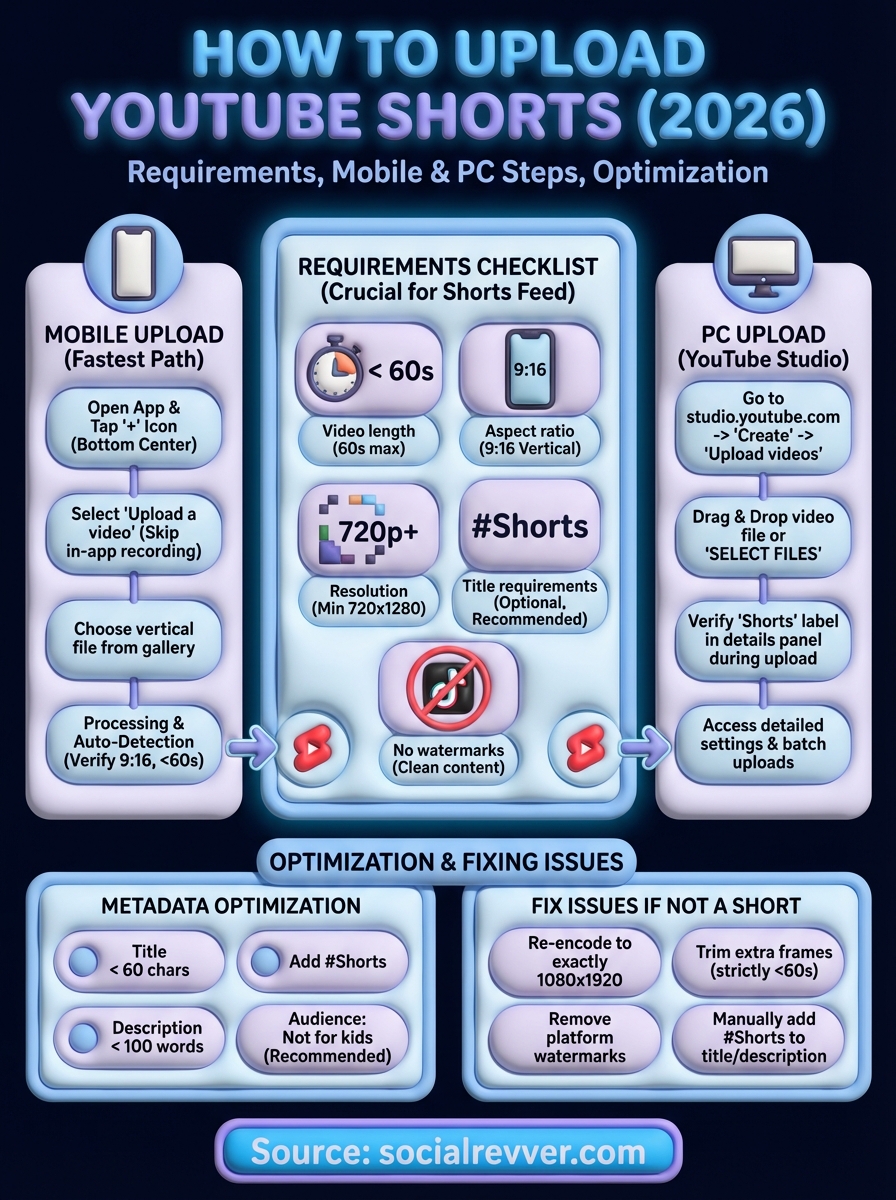
Here's the complete checklist you need to verify before uploading:
| Requirement | Specification |
|---|---|
| Video length | 60 seconds or less |
| Aspect ratio | 9:16 (vertical) |
| Resolution | Minimum 720 x 1280 pixels |
| File format | MP4, MOV, AVI, FLV, or other standard formats |
| Title requirements | Include #Shorts in title or description (optional but recommended) |
| Audio | Can include music or voiceover (no restrictions) |
| Watermarks | No TikTok watermarks or other platform branding |
The aspect ratio and length are the two most critical factors. YouTube's detection algorithm prioritizes vertical videos under 60 seconds, so if your content is horizontal or exceeds one minute, it won't qualify. Resolution matters less than format, but staying above 720p ensures your content looks sharp on mobile devices where most Shorts are consumed.
Step 1. Upload a Short from the YouTube mobile app
The YouTube mobile app gives you the fastest path to upload Shorts, especially if you recorded your video directly on your phone. When you understand how to upload YouTube Shorts from mobile, you can publish content immediately after recording, which matters when you're capturing time-sensitive moments or trending topics. This method works identically on both iOS and Android devices, and it's the same interface most creators use to maintain consistent posting schedules.
Access the upload interface
You start by opening the YouTube app and tapping the plus icon at the bottom center of your screen. This launches YouTube's creation menu, where you'll select "Create a Short" if you want to record directly, or tap "Upload a video" if you already have your content saved to your device. Most professional creators skip the in-app recording tool because it lacks editing features, so you'll typically choose the upload option to work with pre-edited files.

The mobile upload path gives you immediate access to YouTube's Short detection algorithm, which processes vertical videos under 60 seconds automatically.
Complete the upload sequence
Select your vertical video file from your phone's gallery, and YouTube immediately begins processing the upload. The platform scans your file for the 9:16 aspect ratio and sub-60-second duration, then routes it to the Shorts feed if both criteria match. You'll see a preview screen where you can trim the video if needed, though you should handle all editing before upload to maintain quality control.
Step 2. Upload a Short from a PC in YouTube Studio
Uploading from a desktop computer through YouTube Studio gives you access to detailed settings and batch upload capabilities that mobile devices don't offer. Understanding how to upload YouTube Shorts from a PC is particularly valuable when you're working with professionally edited content or managing multiple videos simultaneously.
Access YouTube Studio's upload portal
Navigate to studio.youtube.com and click the "Create" button in the top right corner, then select "Upload videos" from the dropdown menu. YouTube opens the upload interface where you drag and drop your video file or click "SELECT FILES" to browse your computer. The platform begins processing immediately, and you'll see a progress bar showing upload status.
Desktop uploads process faster when you handle all editing externally and upload final files rather than using YouTube's built-in tools.
Verify Shorts detection during upload
YouTube Studio automatically detects vertical videos under 60 seconds as Shorts, but you can verify the classification by checking the video details panel during upload. Look for the "Shorts" label that appears next to your video thumbnail, confirming the platform recognized your 9:16 aspect ratio and duration requirements. If you don't see this label, your video will publish as regular content instead of appearing in the Shorts feed.

Step 3. Set title, description, hashtags, and audience
After uploading your video, YouTube displays the details page where you configure the metadata that determines how your Short appears to viewers. These fields directly impact your discoverability and whether YouTube's algorithm routes your content to the right audience. When learning how to upload YouTube Shorts correctly, this step separates content that gets seen from content that dies in obscurity.
Write effective titles and descriptions
Your title should directly state what viewers will see in under 60 characters, because YouTube truncates longer titles in the Shorts feed. Add #Shorts anywhere in your title or description to reinforce platform detection, though YouTube's algorithm usually identifies vertical videos automatically. Your description can expand on the value proposition, but keep it under 100 words since most viewers won't read beyond the first line.
YouTube's algorithm prioritizes content with clear, search-friendly titles over clever wordplay that confuses both viewers and automated systems.
Template structure for optimal metadata:
Title: [Main benefit/topic] + #Shorts
Description: Brief context + call to action + relevant keywords
Configure audience settings
Select "No, it's not made for kids" if your content targets adults, or YouTube restricts features like comments and personalized ads. Enable or disable comments based on whether you want to collect viewer feedback, though active comment sections typically signal higher engagement to the algorithm.
Fix issues when your upload does not become a Short
YouTube sometimes fails to classify vertical videos as Shorts even when you've followed every technical requirement correctly. This classification failure happens when the platform's detection algorithm encounters edge cases or conflicting signals in your upload. When you're figuring out how to upload YouTube Shorts successfully, understanding these failure points lets you fix detection issues before they cost you distribution in the Shorts feed.
Verify and correct technical mismatches
Check your aspect ratio settings first because encoding errors often produce videos that appear vertical but contain horizontal metadata. Re-export your video at exactly 1080 x 1920 pixels using a standard video editor, then upload the corrected file. YouTube's algorithm prioritizes exact ratio matches over approximate dimensions.
Re-encoding with exact 9:16 dimensions solves 80% of classification failures that occur despite apparent vertical formatting.
Remove any platform watermarks from TikTok, Instagram, or other apps since YouTube deprioritizes or blocks content with competitor branding. Confirm your video length stays under 60 seconds by trimming any extra frames that editing software sometimes adds during export. If the Short label still doesn't appear after upload, delete the video and re-upload with #Shorts added explicitly to both the title and description to force manual detection.
Quick wrap-up
You now have the complete process for how to upload YouTube Shorts from both mobile devices and desktop computers. Start by verifying your video meets the 9:16 aspect ratio and stays under 60 seconds, then choose your upload method based on your workflow. Mobile uploads work best for quick content captured on your phone, while YouTube Studio on PC gives you better control over batch uploads and detailed settings. Configure your title, description, and audience settings immediately after upload to maximize discoverability in the Shorts feed.
Most technical issues come from aspect ratio mismatches or missing the 60-second limit, so always double-check these specifications before publishing. When you upload consistently and follow YouTube's detection requirements, your content enters the Shorts feed where it can access over 70 billion daily views. If you want a data-driven system that handles your entire short-form content pipeline from strategy to distribution, apply for a free 40+ slide social media strategy from our team at SocialRevver.